Screen density guide
DPI Calculator
Use our free DPI calculator to find the pixel density of your screen. Enter your monitor's resolution and diagonal screen size to calculate how many pixels are packed into each inch of the display. The result helps you compare monitors, laptops, and other screens based on their pixel density.
For example, a display with a resolution of 1366 × 768 and a diagonal size of 11.6 inches has a much different pixel density from a larger screen using the same resolution. This is because the same number of pixels are spread across a different physical area. A smaller screen with the same resolution will have more pixels per inch.
What Is Monitor DPI?
Monitor DPI is commonly used to describe the number of display pixels contained within one inch of a screen. In strict technical terminology, PPI (pixels per inch) is the more precise term for a digital display because screens contain pixels rather than printer dots. However, DPI is widely used when people search for screen pixel density, which is why this calculator uses the term screen DPI as well as PPI.
A higher pixel density means that individual pixels are smaller and more closely packed together. This can make text, icons, photographs, and other graphics appear more detailed and less pixelated. However, pixel density is only one factor affecting perceived image quality. Viewing distance, screen size, scaling, and the quality of the content displayed also matter.
How Is Screen DPI Calculated?
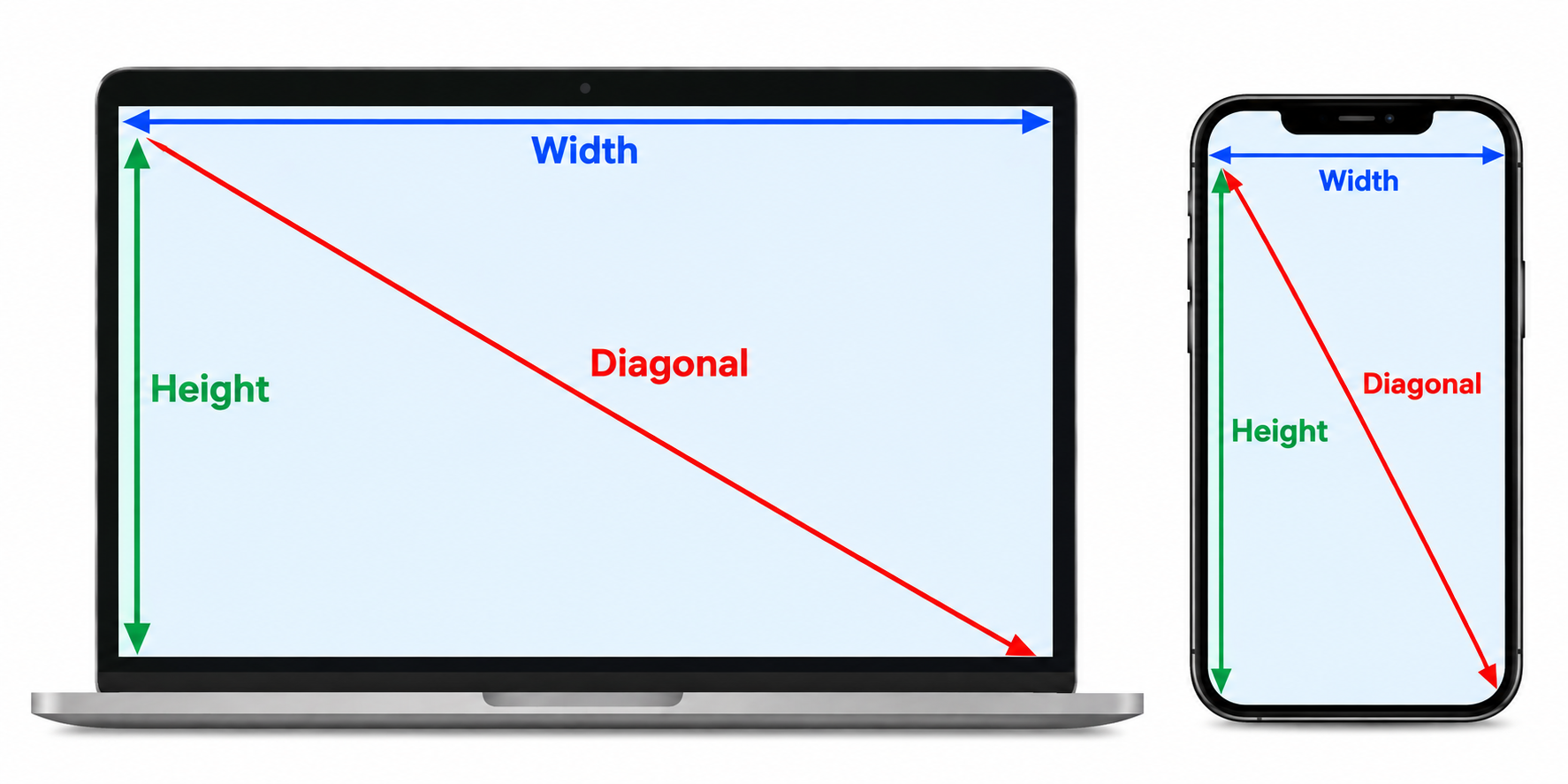
Our screen DPI calculator uses your horizontal resolution, vertical resolution, and physical screen size. First, it calculates the number of pixels along the display's diagonal using the horizontal and vertical pixel dimensions. That diagonal pixel count is then divided by the physical diagonal size in inches.
The formula is:
DPI = √(width² + height²) ÷ diagonal screen size
For example, if a monitor has a resolution of 1920 × 1080 and a diagonal size of 24 inches, the diagonal pixel resolution is calculated from the width and height. Dividing that value by 24 gives a screen density of approximately 92 pixels per inch.
How to Use the DPI Calculator
Calculating your monitor's DPI is simple. The calculator uses the same straightforward process as our other screen measurement tools.
Check your screen resolution.
The calculator can automatically detect your current display resolution. Check the values shown for Resolution width and Resolution height.
Update the resolution if necessary.
If the detected resolution does not match your monitor's actual resolution, enter the correct horizontal and vertical pixel values manually. For example, common resolutions include 1920 × 1080, 2560 × 1440, and 3840 × 2160.
Enter your screen size.
Enter the diagonal size of your display in inches. Measure from one corner of the visible screen to the opposite corner, without including the surrounding bezel.
Click “Calculate DPI”.
After entering your resolution and screen size, click the calculation button. The calculator will determine the pixel density of your display.
Check your screen DPI.
The result shows the approximate number of display pixels per inch. You can use this number to compare the pixel density of different monitors and screens.
Why Does Monitor DPI Matter?
Screen DPI is useful when comparing displays that have different resolutions and physical sizes. Two monitors can have exactly the same resolution but different pixel densities if their screen sizes are different.
For example, a 1920 × 1080 resolution on a 21.5-inch display has a higher pixel density than the same 1920 × 1080 resolution on a 27-inch display. The smaller display packs those pixels into a smaller physical area.
Pixel density can be particularly useful when choosing a monitor for reading, programming, graphic design, photography, gaming, or general desktop use. A higher density can provide finer-looking text and graphics, although the ideal density also depends on how far you normally sit from the screen.
Monitor DPI vs Resolution
Screen resolution tells you how many pixels the display contains horizontally and vertically, while DPI/PPI describes how densely those pixels are packed into the physical screen.
This distinction is important when comparing monitors. A 27-inch 4K monitor and a 32-inch 4K monitor have the same number of pixels, but the 27-inch display has a higher pixel density because those pixels are packed into a smaller physical screen.
DPI and Viewing Distance
A screen's pixel density does not tell the entire story about how sharp it will appear. Viewing distance also affects how easily individual pixels can be distinguished. A phone is normally viewed much closer to your eyes than a desktop monitor, so phones generally use much higher pixel densities.
This is also why a large display can provide a good viewing experience at a lower pixel density when it is viewed from farther away. When comparing screens, consider both the calculated DPI and how you will actually use the display.